Hygge theme documentation
A warm Shopify theme for craft shops and small workshops, with producer stories, batch codes and a page for every maker. Presets: Hygge, Night Reading and Flax.
Getting started
- Add Hygge from the Shopify Theme Store: Online Store → Themes → Visit Theme Store, then choose a preset.
- Click Customize to open the theme editor. The home page comes with example sections you can edit, reorder or remove.
- Set your logo, colors and fonts in Theme settings (the gear icon in the editor).
- To show who made each product, follow Producer stories. It takes about ten minutes and is optional: the theme works without it.
- Preview your store, then click Publish when you're ready.
Presets
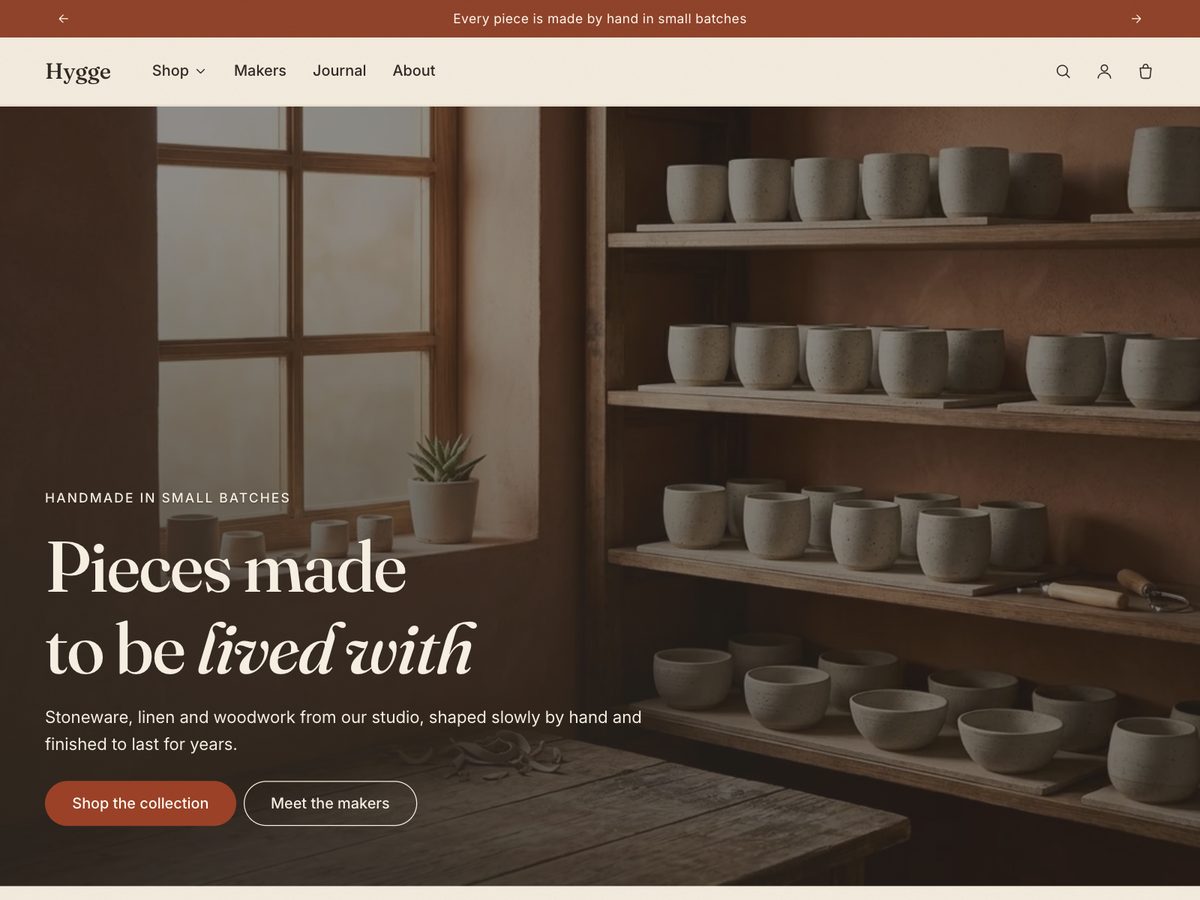
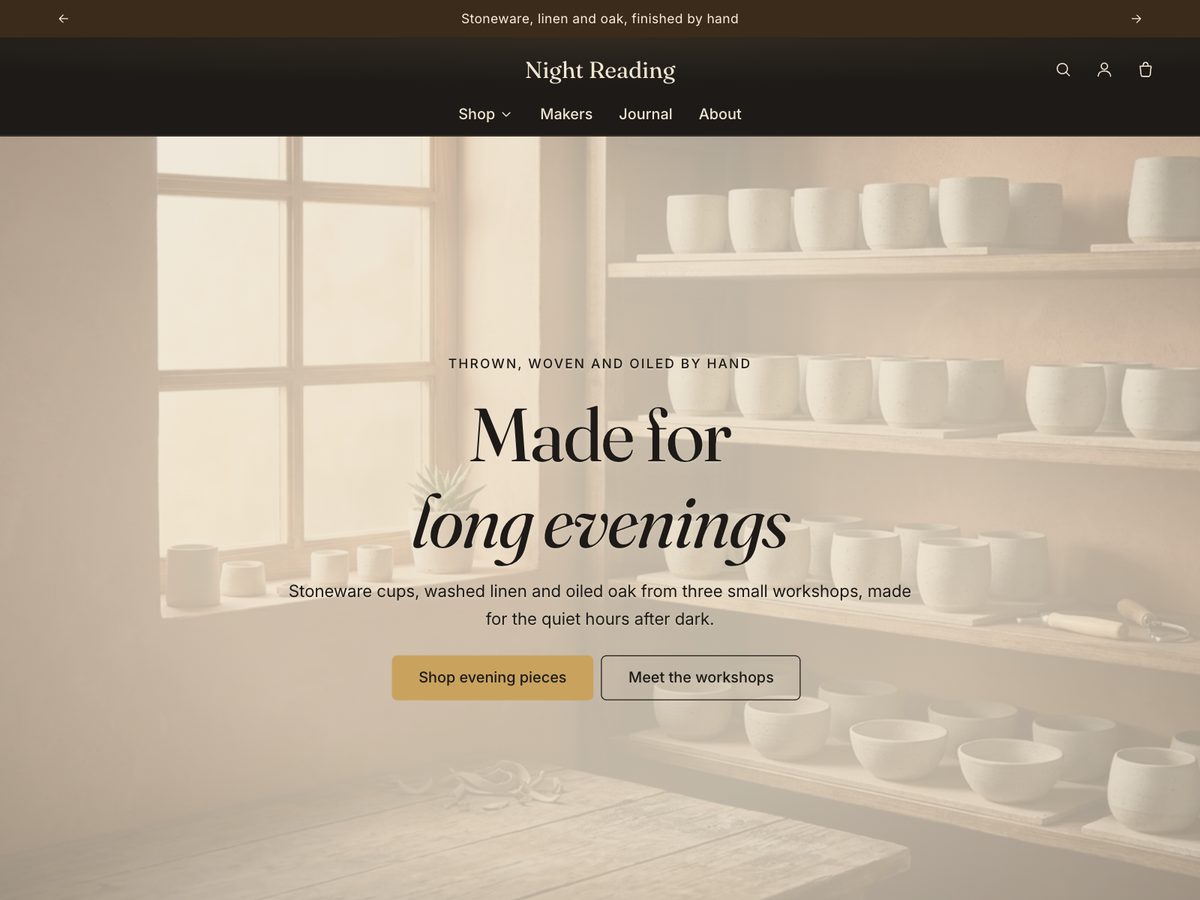
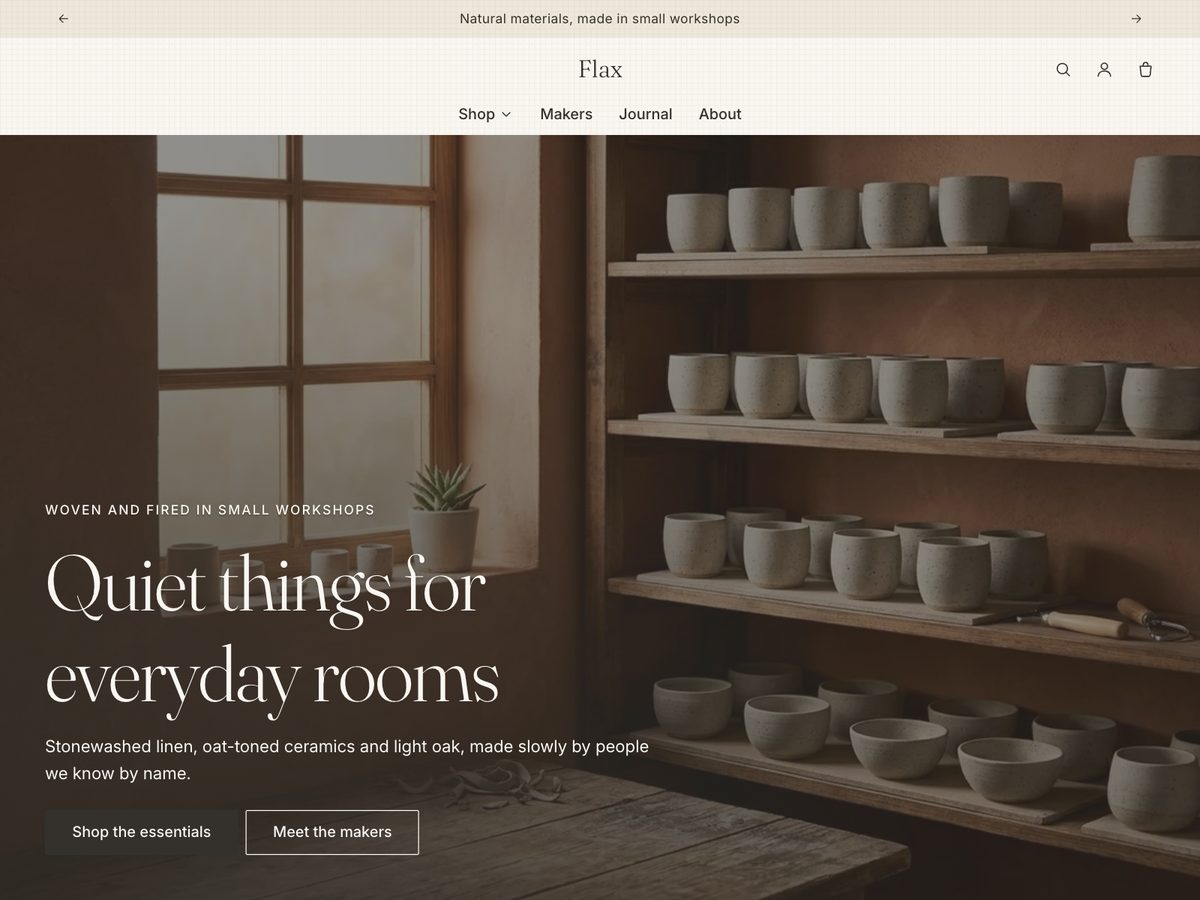
| Preset | Look | Good for |
|---|---|---|
| Hygge | Cream paper, terracotta and sage, soft edges, subtle paper texture | Ceramics, home goods, workshops with a warm brand |
| Night Reading | Dark background, cream text, amber and brass accents | Evening and slow-living products, brands with a dark identity |
| Flax | Linen, oat and light wood, generous white space, fine linen texture | Textiles, natural materials, minimal catalogs |
Producer stories
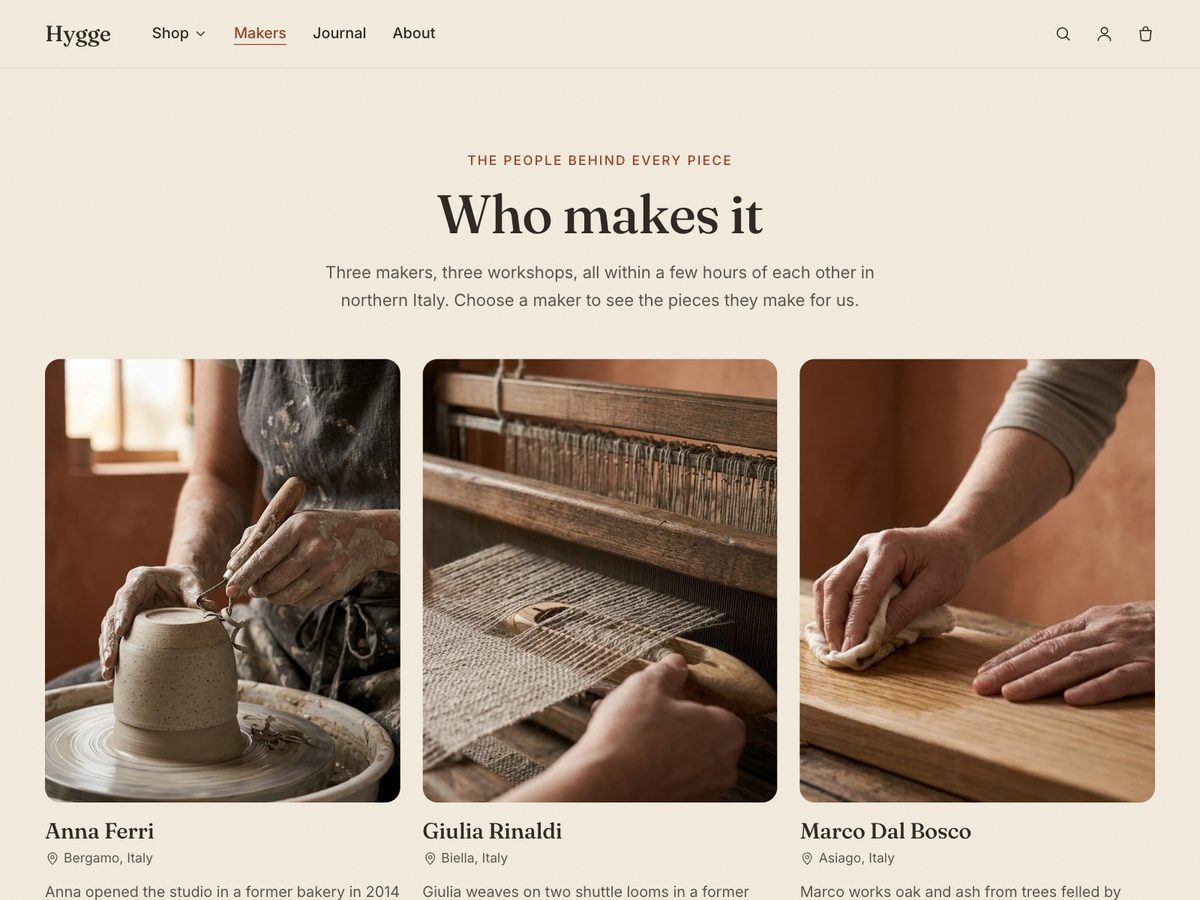
The Producer story section on product pages and the Who makes it page read data from a producer metaobject. A theme can't create this data structure itself, so you set it up once in the Shopify admin. Until you do, these features stay hidden: no empty boxes and no errors.
1. Create the Producer definition
Go to Settings → Custom data → Metaobject definitions → Add definition.
- Name:
Producer. Type:producer(exactly this). - Turn on Storefronts access.
- Add these fields. Only Name is required.
| Field | Key | Type | Shown as |
|---|---|---|---|
| Name | name | Single line text | Maker or workshop name |
| Origin | origin | Single line text | Place, for example "Bergamo, IT"; also on product cards |
| Story | story | Multi-line text | A few sentences about the maker |
| Photo | photo | File (images) | Portrait photo, 4:5 works best |
| Batch code | batch_code | Single line text | For example "BG-2026-014" |
| Production date | production_date | Date | Shown in your store's date format |
| Collection | collection | Collection | Link to the maker's pieces |
2. Connect products to producers
Go to Settings → Custom data → Products → Add definition. Name it Producer, use namespace and key custom.producer (exactly this), type Metaobject → Producer, and turn on Storefronts access.
3. Add your makers
Go to Content → Metaobjects → Producer → Add entry for each maker. Then open a product, scroll to Metafields and pick its producer.
4. Where it appears
- Product page: the Producer story section sits below the product information and appears on every product that has a producer.
- Who makes it page: create a page in Online Store → Pages, and choose the template
page.producers. The page text becomes the introduction, followed by a grid of all producers. - Product cards: turn on Theme settings → Product cards → Show producer origin.
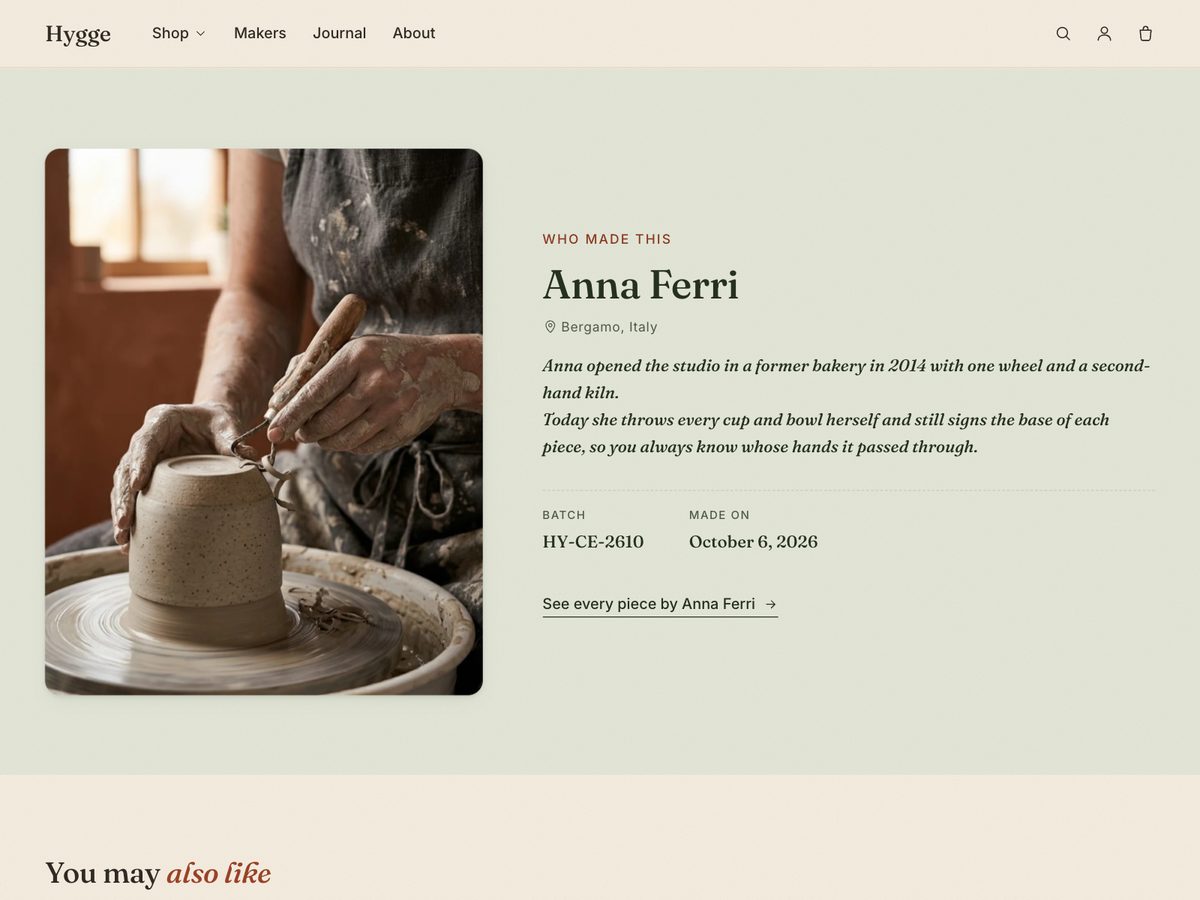
Selling many batches from the same maker? Either create one entry per batch, for example "Marta Bonetti, spring batch", or keep one entry and update the batch code and date.
Building the home page
Add sections with Add section in the theme editor. Sections made for this theme:
- Image banner: full-width image with heading and buttons. Use the overlay setting to keep text legible; the theme darkens the image more around the text. You can set a separate image for mobile.
- Process steps: up to six steps with an image each, for how your products are made.
- Image with text: a maker's story, with an optional signature.
- Testimonials: up to nine quotes from customers.
- Slideshow: up to six full-width slides with heading, text and a button. Autoplay is optional; it pauses on hover and focus, has a pause button and never runs for visitors who prefer reduced motion.
- Press: quotes from articles with the publication's logo or name, or a simple row of logos. Two presets: Press quotes and Press logos.
Also available: Featured collection, Featured product, Collection list, Multicolumn, Rich text, Collapsible content, Blog posts, Newsletter, Video, Contact form and Custom Liquid.
Product page
- The Product information section has blocks for title, price, variant picker, quantity, buy buttons, inventory status, SKU and more. Reorder them by dragging.
- Variant images: assign an image to each variant in the admin, and the gallery switches when a customer picks it.
- Sold-out variants stay visible but can't be added to the cart.
- Unit prices, pickup availability and gift card recipient fields work out of the box.
Theme settings
| Group | What you can change |
|---|---|
| Logo and favicon | Logo, logo width, favicon |
| Colors | Color schemes for sections, light or dark color mode, sale and sold-out badge colors |
| Typography | Heading and body fonts from the Shopify font library, size scales, style of italic words in headings |
| Layout | Page width, space between sections and between grid items |
| Style | Corner radius of buttons, inputs, cards and images; shadows; background texture; reveal on scroll and hover effects |
| Product cards | Image ratio, second image on hover, vendor, producer origin, quick add, card style and color scheme |
| Cart | Drawer or cart page, order notes, drawer color scheme |
| Search behavior | Search suggestions and prices in suggestions |
| Currency format | Show currency codes |
| Social media | Links shown by the Social media icons block |
| Navigation | Breadcrumbs above product, collection, blog, article and page content; back to top button |
Languages
FAQ
The Producer story section doesn't show on my product page.
custom.producer and the type exactly producer.The Who makes it page is empty.
page.producers template and that at least one producer entry exists and is active.Can I use the theme without producers?
Text on my banner image is hard to read.
How do I change the order of the product page blocks?
Can I use my own fonts?
How do I update the theme?
Does the theme support dark mode?
Support
Send your question with the support form: contact Hygge support. Include your store URL and, if possible, a screenshot. We reply within two business days.
We can help with theme settings, sections, the producer setup and bugs in the theme. Changes to theme code, third-party apps and store setup outside the theme aren't covered.